
Import & export
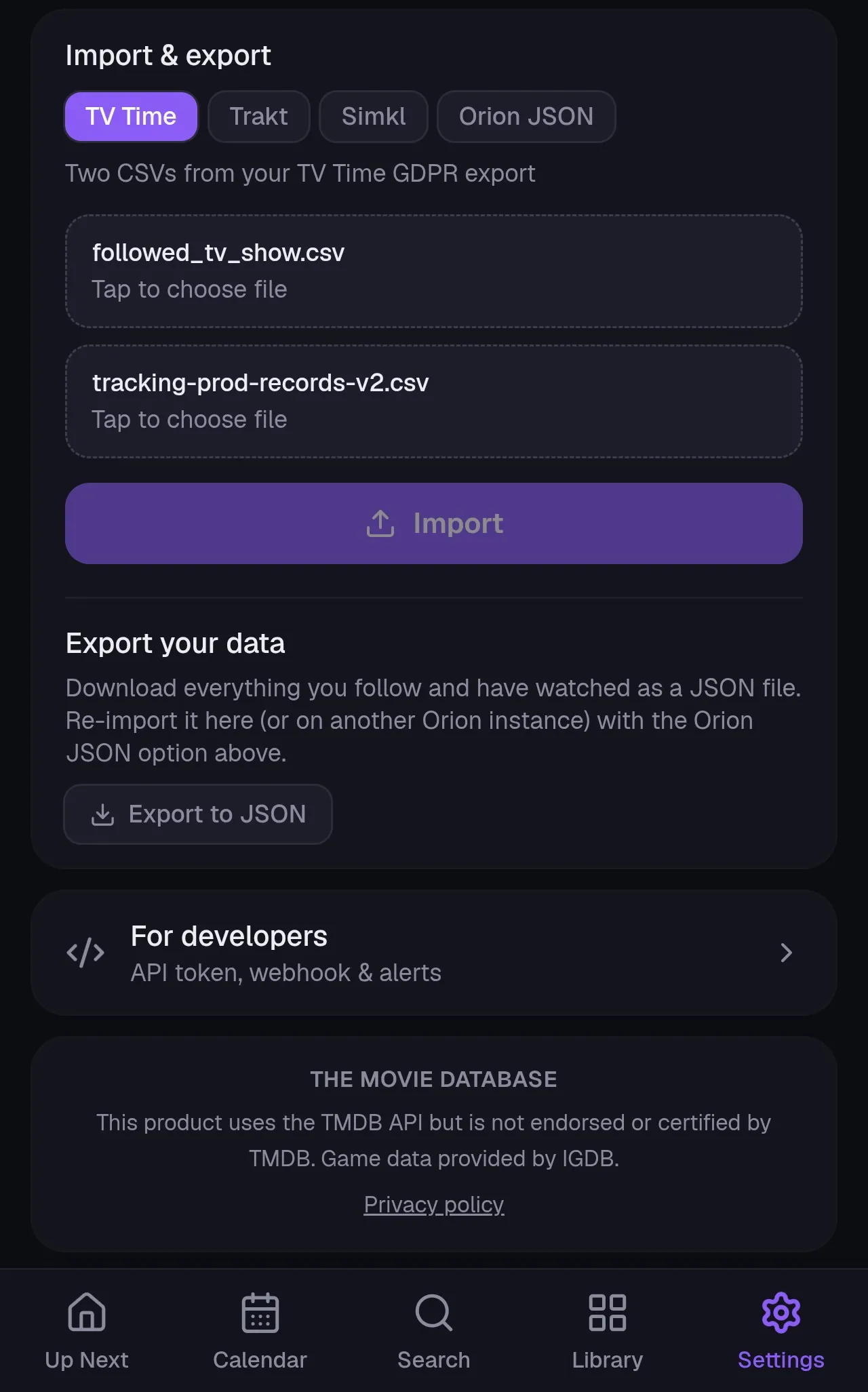
Everything lives under Settings → Import & export. Pick a source, upload the file(s) it asks for, and Orion matches each title against TMDB, follows it, and marks your history watched. Every import is idempotent: running one twice won’t duplicate anything, so it’s safe to re-run if something looks off.
Four sources are supported. Each section below covers how to get your data out of that service and into Orion.
TV Time
Section titled “TV Time”Orion imports your followed shows and your entire episode by episode watch history from TV Time’s official data export.
Get your data out of TV Time
Section titled “Get your data out of TV Time”- In the TV Time app, go to Settings → General → Download my data. This is TV Time’s GDPR export.
- TV Time emails you a download link. It can take a day or two to arrive.
- Download the export. It contains a folder of CSV files, and Orion needs
exactly two of them:
followed_tv_show.csv: the shows you followtracking-prod-records-v2.csv: your watch history
Import into Orion
Section titled “Import into Orion”- In Settings → Import & export, pick the TV Time source.
- Upload both CSV files and tap Import.
- Keep the page open until it finishes. A large history can take a few minutes, since Orion syncs every show’s full episode list to match your history against.
The import maps each TV Time show to its TMDB entry, follows it, and marks every episode from your history watched, rewatches included. Shows that appear only in your watch history (you watched them but no longer follow them) come in as archived, so the history is preserved without cluttering Up Next.
Trakt’s full data export is a VIP feature.
- On trakt.tv, go to Settings → Data → Export and request your export. You’ll get a ZIP file.
- Unzip it first.
- In Settings → Import & export, pick the Trakt source and upload the JSON files from inside the ZIP (watched history, watchlist, and so on). You can select more than one file at once.
Simkl’s backup export is free.
- On simkl.com, go to Settings → Data → Export and download your backup JSON file.
- In Settings → Import & export, pick the Simkl source and upload it directly. No unzipping needed.
Orion JSON
Section titled “Orion JSON”Re-imports an orion-export-*.json file produced by the export described
below, from this instance or another Orion install. Because the file already
carries TMDB and IGDB ids, this path skips title matching entirely. It’s how
you move a library between Orion servers, or restore from a backup.
Pick the Orion JSON source and upload the file.
After any import
Section titled “After any import”The report shown when an import finishes lists what matched and what didn’t. A handful of very obscure titles can fail to map to TMDB, so add those manually via Search. Then check Library: your shows and progress should be there, and Up Next should already point at the right episodes.
Export your library
Section titled “Export your library”- Open Settings → Import & export.
- Under Export your data, tap Export to JSON.
- An
orion-export-<date>.jsonfile downloads immediately. There’s nothing to configure.
The file holds your whole library, meaning every followed show, movie, and game plus watch history, keyed by TMDB, IGDB, and TVDB ids rather than Orion’s internal ids, so it survives a move to a different Orion instance. Use it as a periodic backup, or feed it to the Orion JSON import above on another server.
Scripts can grab the same file from GET /api/export
with your API token.